Configuring Layer 2 Primary Networks with UDNs
Overview
This tutorial shows you how to create a primary network using User Defined Networks (UDNs) with Layer 2 topology in OpenShift Virtualization. Instead of using the cluster’s default network, UDNs let you define custom IP ranges and provide complete network isolation for applications within a specific namespace. This approach is ideal when applications need direct control over IP addressing or require custom networking requirements. The entire setup takes just 5 straightforward steps without requiring additional network attachment definitions.
Prerequisites
-
OpenShift 4.18+ cluster with OpenShift Virtualization operator installed
-
OVN-Kubernetes network plugin (default in OpenShift)
-
Cluster admin access for creating namespaces and UserDefinedNetwork resources
-
CLI tools installed:
oc,virtctl
Step 1: Create UDN-Enabled Namespace
Create a namespace with the UDN primary network label to enable User Defined Network functionality. The special label k8s.ovn.org/primary-user-defined-network tells OpenShift that this namespace will use a custom primary network instead of the cluster default.
| The namespace must be created and labeled before any workload deployment happens and cannot be changed once created. |
oc apply -f - <<EOF
apiVersion: v1
kind: Namespace
metadata:
  name: udn-primary-vm-guests
  labels:
    k8s.ovn.org/primary-user-defined-network: ""
EOF
Step 2: Configure the UserDefinedNetwork Resource
Define the primary UDN with Layer2 topology and custom subnet configuration. This resource specifies the network characteristics including IP range, IPAM lifecycle, and primary role designation to override default cluster networking for pods in the namespace.
oc apply -f - <<EOF
apiVersion: k8s.ovn.org/v1
kind: UserDefinedNetwork
metadata:
  name: udn-primary
  namespace: udn-primary-vm-guests
spec:
  topology: Layer2
  layer2:
    role: Primary
    subnets:
    - "192.168.100.0/24"
  ipam:
    lifecycle: Persistent
EOF
Step 3: Deploy Workload with Primary UDN
Create a virtual machine that utilizes the primary UDN configuration and runs a simple Python HTTP server for testing connectivity. The workload automatically receives an IP address from the 192.168.100.0/24 subnet via the UDN’s IPAM and uses the UDN as its primary network interface.
| The cloud-init password in this example is for demo purposes only. Always use a strong, unique password or SSH key authentication in production environments. |
oc apply -f - <<EOF
apiVersion: kubevirt.io/v1
kind: VirtualMachine
metadata:
  name: fedora-vm-with-udn
  namespace: udn-primary-vm-guests
  labels:
    app: fedora-web-vm
    network-type: udn-primary
spec:
  runStrategy: Always
  instancetype:
    name: u1.small
  preference:
    name: fedora
  dataVolumeTemplates:
  - metadata:
      name: fedora-udn-volume
    spec:
      pvc:
        accessModes:
        - ReadWriteOnce
        resources:
          requests:
            storage: 33Gi
      sourceRef:
        kind: DataSource
        name: fedora
        namespace: openshift-virtualization-os-images
  template:
    metadata:
      labels:
        app: fedora-web-vm
    spec:
      domain:
        devices:
          disks:
          - name: datavolumedisk
            disk: {}
          - name: cloudinitdisk
            disk: {}
          interfaces:
          - name: default
            binding:
              name: l2bridge
      networks:
      - name: default
        pod: {}
      volumes:
      - name: datavolumedisk
        dataVolume:
          name: fedora-udn-volume
      - name: cloudinitdisk
        cloudInitNoCloud:
          userData: |
            #cloud-config
            write_files:
            - path: /etc/resolv.conf
              content: |
                nameserver 172.30.0.10      # cluster DNS
                search udn-primary-vm-guests.svc.cluster.local svc.cluster.local
                options ndots:5
            user: fedora
            password: fedora
            chpasswd:
              expire: false
            packages:
            - python3
            runcmd:
            - echo "<h1>Welcome to OpenShift Virtualization !!!</h1>" > /root/index.html
            - cd /root && nohup python3 -m http.server 80 > /dev/null 2>&1 &
EOF
Step 4: Expose VM as a Service
Create a Kubernetes Service to expose the VM’s Python HTTP server with a LoadBalancer.
| Cloud services like AWS automatically deploy a load balancer for this configuration. For bare metal deployments, consider using MetalLB as your load balancer. |
oc apply -f - <<EOF
apiVersion: v1
kind: Service
metadata:
  name: fedora-vm-web-service
  namespace: udn-primary-vm-guests
  labels:
    app: fedora-web-vm
spec:
  selector:
    app: fedora-web-vm
  ports:
  - name: http
    port: 80
    targetPort: 80
    protocol: TCP
  type: LoadBalancer
EOF
Step 5: Verify Service Availability
This test was performed using an AWS-based cluster with metal type instances that automatically deploys a load balancer and creates an external name. You can find the name in the external service IP:
oc get svcExample output:
NAME                    TYPE           CLUSTER-IP      EXTERNAL-IP                                                                  PORT(S)        AGE
fedora-vm-web-service   LoadBalancer   172.30.72.140   aa32981df19ad4959ae9a82fb9990db9-1996929606.ca-central-1.elb.amazonaws.com   80:32291/TCP   45m
Test the service using curl:
curl aa32981df19ad4959ae9a82fb9990db9-1996929606.ca-central-1.elb.amazonaws.comExpected output:
<h1>Welcome to OpenShift Virtualization !!!</h1>Network Topology
The following diagram illustrates how a UDN primary network provides namespace-scoped network isolation with custom IP addressing. Unlike secondary networks that add an interface alongside the default pod network, a UDN primary network replaces the default pod network entirely for all workloads in the namespace.
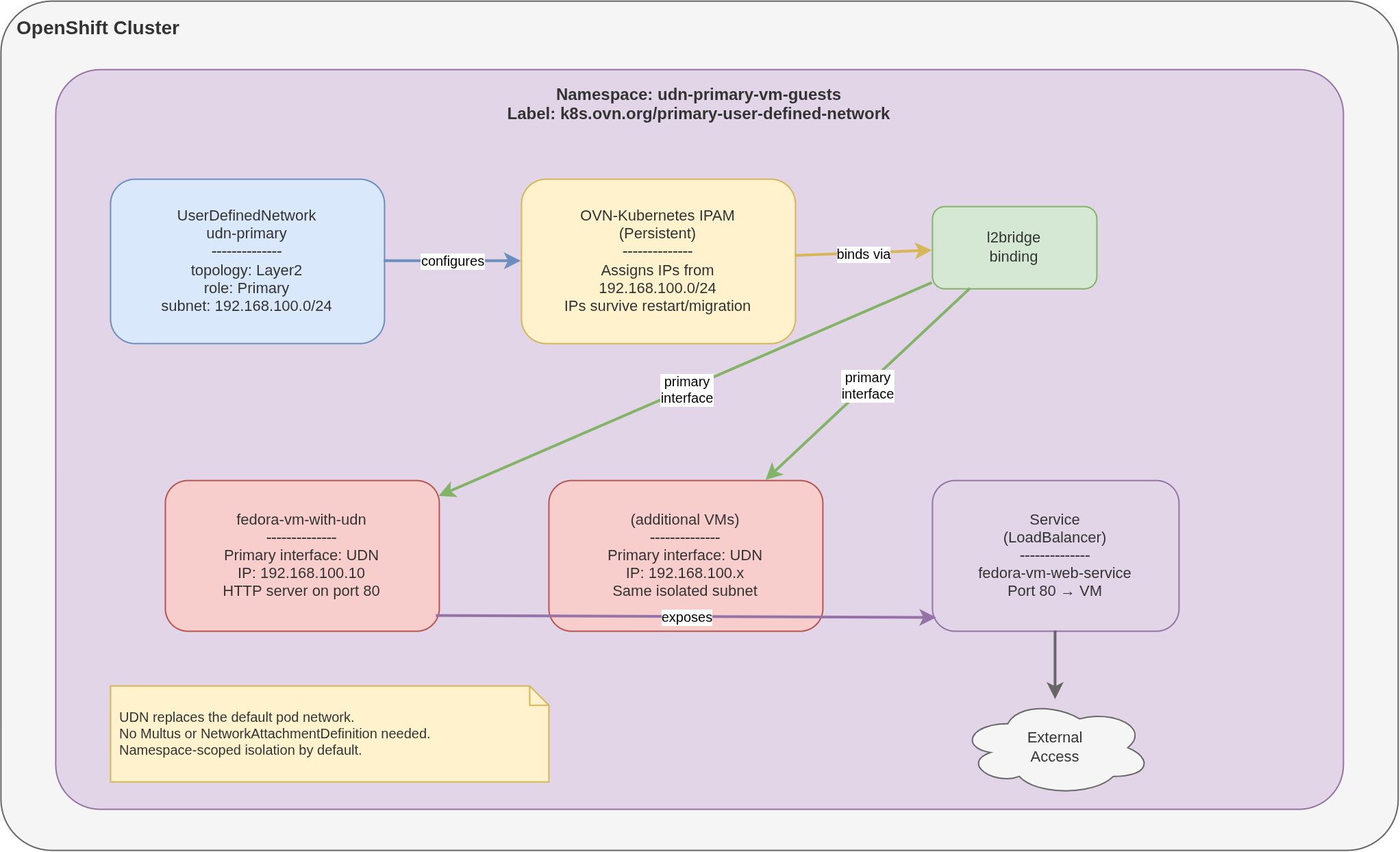
The UserDefinedNetwork resource with Layer2 topology and role: Primary configures OVN-Kubernetes to manage a custom subnet (192.168.100.0/24) for the labeled namespace. OVN-Kubernetes IPAM assigns addresses from this subnet with Persistent lifecycle, meaning VMs retain their IPs across restarts and migrations. Each VM’s primary interface connects through an l2bridge binding directly to the UDN, with no Multus plugin or NetworkAttachmentDefinition required. External access is provided through standard Kubernetes Services, such as a LoadBalancer that routes traffic to VMs on the UDN subnet.
The namespace must be labeled with k8s.ovn.org/primary-user-defined-network before any workloads are deployed. This label cannot be added or removed after pods or VMs are running in the namespace.
|
Business Use Cases
UDN primary networks are best suited for workloads that require complete network isolation with custom IP addressing at the namespace level.
| Use Case | Description |
|---|---|
Multi-tenant SaaS platforms |
Each tenant gets a dedicated namespace with an isolated subnet. VMs in one tenant’s namespace cannot reach VMs in another tenant’s namespace, providing network-level tenant isolation without physical network segmentation. |
Development and test environments |
Teams get namespaces with custom IP ranges (e.g., 10.0.1.0/24 for dev, 10.0.2.0/24 for staging), allowing developers to define addressing schemes that mirror production without conflicting with other teams or the cluster’s default network. |
Cluster-managed IP persistence |
VMs that require stable IP addresses across restarts and live migrations. With |
Comparison with secondary networks |
Choose UDN primary networks when workloads should not use the default pod network at all and need namespace-level isolation. Choose Layer 2 secondary networks when VMs need an additional private network alongside the default pod network, such as for dedicated replication or heartbeat traffic. |
Summary
In this tutorial, you learned:
-
How to create a UDN-enabled namespace with the
k8s.ovn.org/primary-user-defined-networklabel -
How to define a
UserDefinedNetworkresource with Layer2 topology and custom subnet configuration -
How to deploy a VM that uses the UDN as its primary network with persistent IPAM
-
How to expose a VM running on a UDN primary network via a LoadBalancer Service
-
How UDN primary networks provide complete network isolation with custom IP addressing