Hardware Profiles in OpenShift AI
Hardware profiles in Red Hat OpenShift AI act as templates that define specific hardware configurations for user workloads. They allow administrators to create a menu of available compute resources—such as "Small CPU", "Large Memory", or "NVIDIA A100 GPU"—that data scientists can easily select without needing to understand underlying Kubernetes complexities like taints, tolerations, or resource limits.
What are Hardware Profiles?
Hardware profiles are Custom Resources (CRs) that serve as an abstraction layer between the physical infrastructure and the end-user. Instead of manually requesting "4 CPUs and 16GB RAM" every time, a user selects a profile like "Standard Data Science" which pre-defines these values.
Key Benefits:
-
Governance: Enforce limits on how much compute a single user can request.
-
Simplicity: Hide complex Kubernetes node selectors and tolerations behind user-friendly names.
-
Efficiency: Ensure workloads are scheduled on the correct hardware (e.g., ensuring GPU jobs only go to GPU nodes).
How to Create a Hardware Profile
When designing a profile, you need to define three categories of information. Use the guide below to make sizing decisions for each category.
A. Metadata (The "Menu" Entry)
-
Name: The user-facing name (e.g., "NVIDIA A100 - Large").
-
Description: Guidance for the user (e.g., "Use this for Large Language Model training").
-
Visibility: Decide if this profile is available to everyone or restricted to model serving or workbench deployments.
B. Identifiers & Tolerations (The "Target")
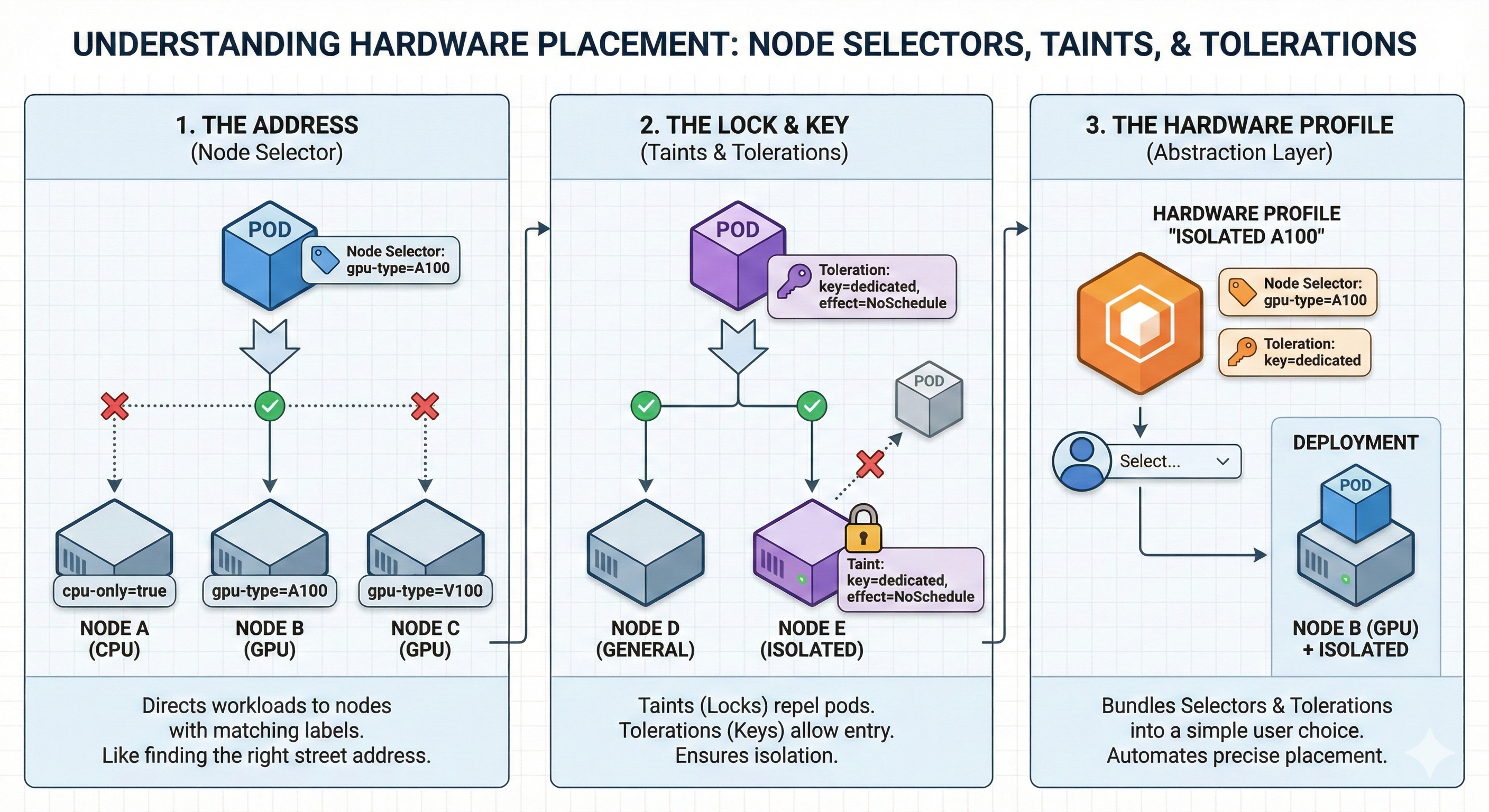
This section tells Kubernetes where to run the workload.
-
Identifier: If targeting a GPU, enter the resource label (e.g.,
nvidia.com/gpu). -
Tolerations: If you have "tainted" your expensive GPU nodes to prevent general workloads from landing there (e.g.,
key=gpu, effect=NoSchedule), you must add the matching Toleration here. This ensures only users selecting this profile can bypass the restriction. -
Node Selectors: Use these to pin workloads to specific node labels (e.g.,
instance-type=p4d.24xlarge).
|
Critical Restriction
You cannot combine this strategy with Kueue. If you define |
C. Resource Limits (The "Sizing")
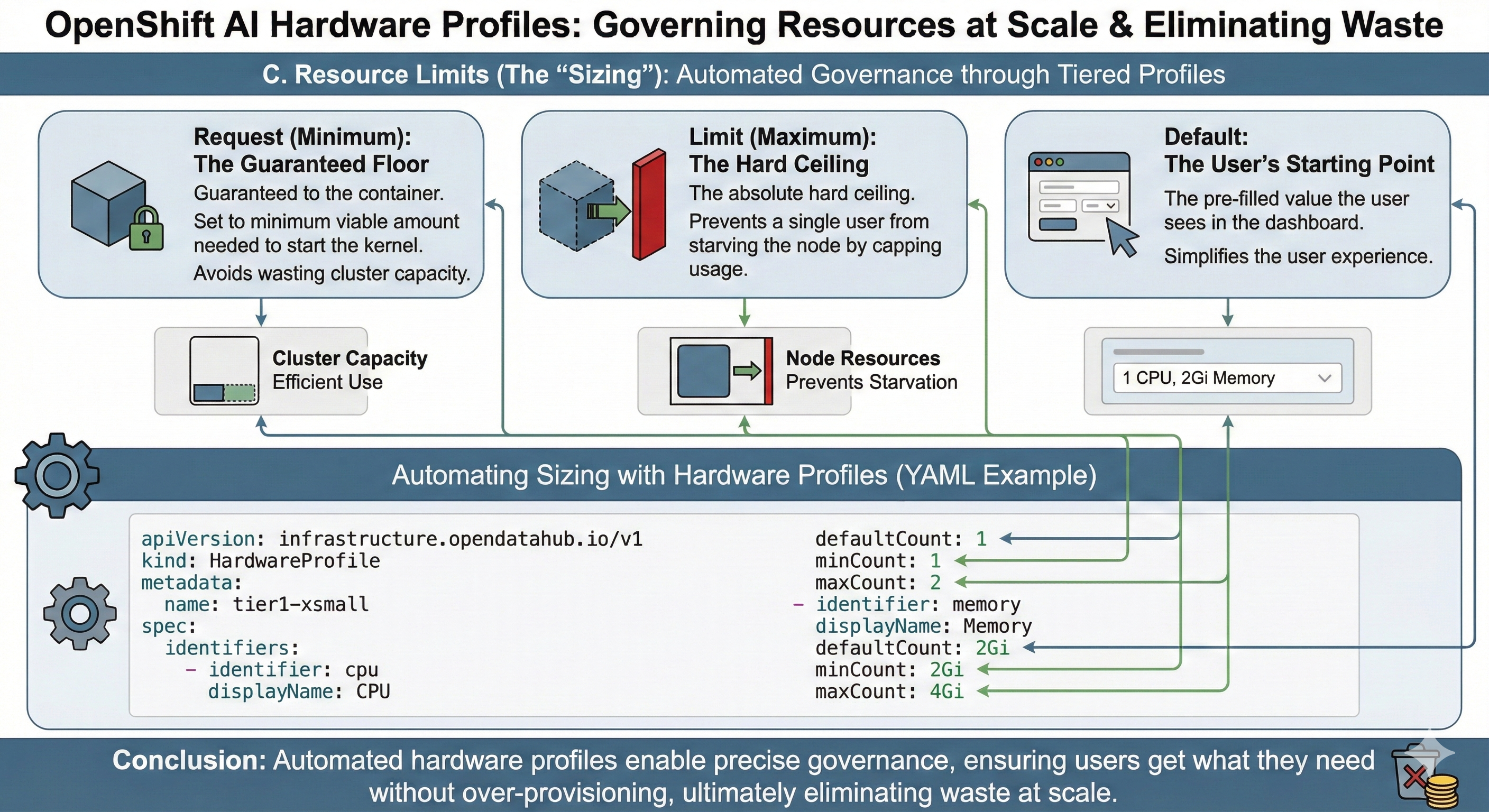
This is the most critical decision for cost and performance. You set CPU and Memory values:
-
Request (Minimum): The amount guaranteed to the container.
-
Set this to the minimum viable amount needed to start the kernel to avoid wasting cluster capacity.
-
-
Limit (Maximum): The hard ceiling.
-
Set this to prevent a single user from starving the node.
-
-
Default: The pre-filled value the user sees.
Enabling & Storing Hardware Profiles
Where is the information stored?
The data is stored as a Custom Resource (CR) of kind HardwareProfile inside the OpenShift cluster’s etcd database. It is not a simple ConfigMap; it is a structured API object that the OpenShift AI operator reads to inject settings into user pods.
How to Enable Hardware Profiles
In some versions of OpenShift AI, this feature might be hidden behind a feature flag. To enable it:
-
Access the OpenShift Console (Administrator view).
-
Find the
OdhDashboardConfigcustom resource. -
Set the
disableHardwareProfilesfield tofalse. -
Refresh the OpenShift AI dashboard, and the "Hardware profiles" menu item will appear under Settings.
Using for Accelerators (GPUs/NPUs)
To use a hardware profile for accelerators like NVIDIA or Gaudi, follow this workflow:
-
Install Drivers: Ensure the NVIDIA GPU Operator (or equivalent) is installed.
-
Create or edit hardware profile:
-
Add a Resource Identifier matching the node label (e.g.,
nvidia.com/gpu). -
Set the Count (e.g., allow users to request 1 or 2 GPUs).
-
Once configured, a data scientist simply selects "NVIDIA GPU" from a dropdown when creating a workbench, and the system automatically handles the complex Kubernetes scheduling in the background.
Governance: Global vs. Project-Scoped Profiles
Not every team needs access to your most expensive hardware. You can control the visibility of Hardware Profiles by defining where they live in the cluster.
Global Profiles (Public Utility)
Global profiles are visible to all users in the OpenShift AI dashboard. Use these for generic resources (e.g., "Standard CPU", "Shared GPU").
-
How to Configure: Create the
HardwareProfileCustom Resource (CR) in the dashboard application namespace (typicallyredhat-ods-applications). -
Use Case: General development, interactive notebooks, introductory training.
Project-Scoped Profiles (Private Reserve)
Project-scoped profiles are visible only to users within a specific Data Science Project. Use these for specialized hardware reserved for advanced teams (e.g., "Finance Team H100").
-
How to Configure: Create the
HardwareProfileCR inside the user’s project namespace (e.g.,finance-models-prod). -
Use Case: Sensitive workloads, reserved capacity for high-priority projects, hardware with specific regulatory compliance requirements.
|
To enable the UI to distinguish between these scopes, ensure the dashboard configuration setting |